Premiere Pro Plugin
Anchor
With
Precision.
Title positioning, made dramatically easier.
Anchor Panel for Premiere Pro
https://moketa.booth.pm/items/8744523 ↗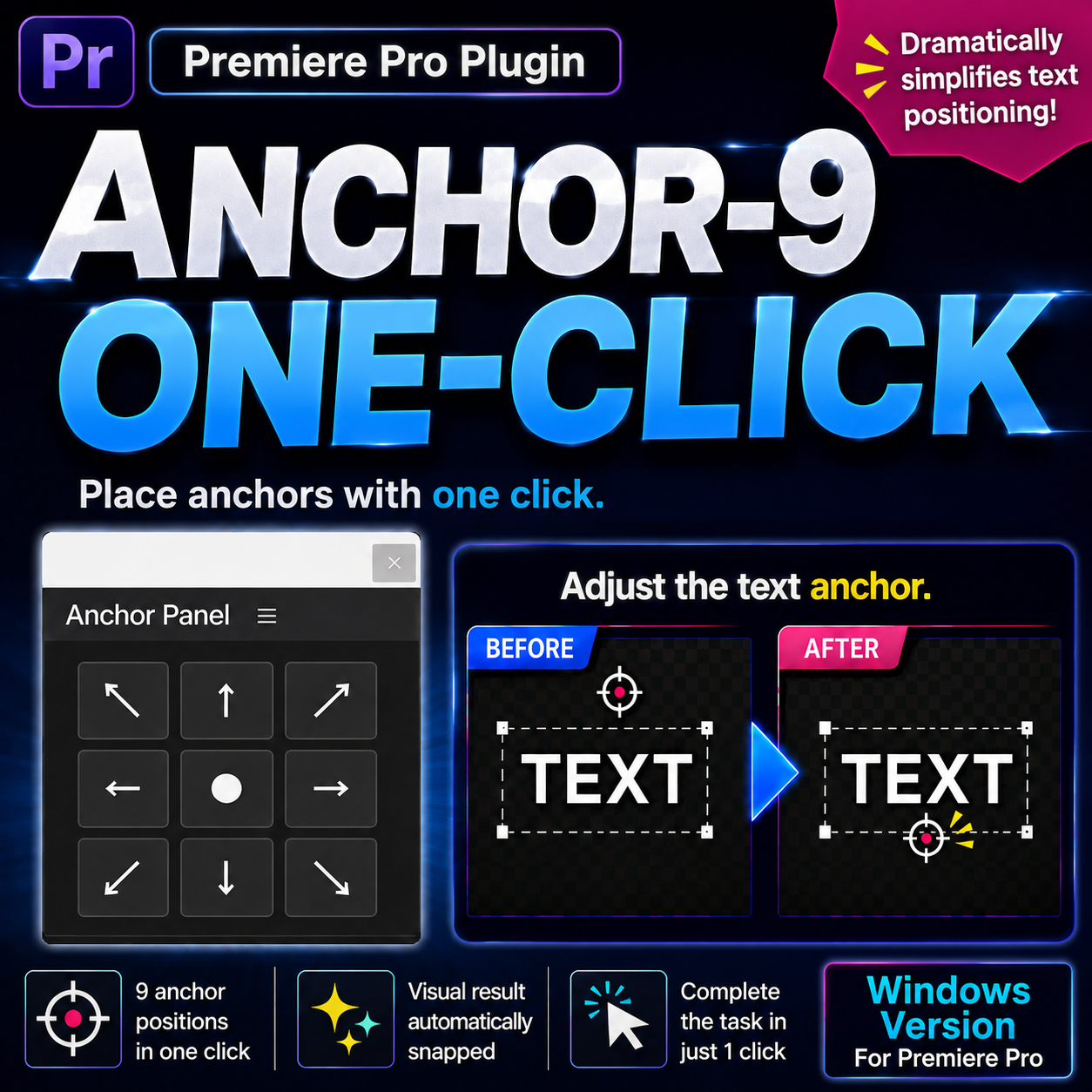
9-position buttons
Jump the anchor to any of 9 positions with a single click.
auto position compensation
The text keeps its exact on-screen position, corrected automatically.
text layers
Select a specific text layer and adjust its anchor.
a clip has multiple texts
With multiple text layers, choose targets from a list.
Ctrl+Z
Every operation is undo-friendly. Revert anytime.
Workflow
A smarter workflow
for title editing.
Free yourself from manual positioning and time-eating repetitive work. Anchor Panel gives that time back to your titles and motion graphics, so you can focus on the craft.
Benefits
- ✔Precise layouts make motion graphics look better.
- ✔Smoother text animation, faster production.
- ✔Less fiddly adjustment work, more room to create.
- ✔Fewer re-dos and mistakes — consistently higher quality.
Compatibility
- 🪟Windows only
- 🎬Adobe Premiere Pro 2026 (v26.0) or later
- ☁️Creative Cloud desktop app required
Notes
- ⓘSome text is out of scope in certain cases: line breaks, tracking, or mixed font sizes.
- ⓘClip-level (Motion / Vector Motion) anchors are not supported — this tool is for text layers.
- ⓘVertical sequences are untested.
How to use (3 steps)
Select a clip
Click a title clip on the timeline.Click a position
Press the spot you want on the panel's 3×3 grid (e.g. ● = center).Done
Only the anchor (⊕) moves — the text stays put.For clips with multiple text layers, a selection list appears first. The panel UI is currently in Japanese — an English UI is in the works. (It's a simple 9-button layout, usable without reading.)
Support
For bug reports and questions, use BOOTH messages or the contact form.